Sample Basket
The Sample Basket is where samples are loaded in order to visualize your expression data on the Visualization page.
The Sample Basket panel will open by clicking on the Sample Basket icon in the main navigation bar. By default the panel overlaps the existing screen content. An open panel can be collapsed back in order to maximize your screen space (by clicking on the ‘Collapse’ icon button in the top right corner of the panel) or pinned (by clicking on the ‘Pin’ icon button) so that the panel is integrated next to the existing content on your screen rather than overlapping it.
Samples (or whole collections) can be placed into the Sample Basket in various ways:
The most common workflow is by starting on the Search page where you can select collections from the Collections tab and/or particular samples from the Samples tab and then click on the ‘Basket’ icon button. The selected samples will appear in the Sample Basket. If you add samples from different collections to the Sample Basket the content will be displayed hierarchically, grouped by collections. When you wish to proceed to the Visualizations page click on the ‘VISUALIZE’ button at the bottom of the Sample Basket or click on the ‘Visualizations’ icon in the main navigation on the left.
There is a shortcut to visualizing all the samples from a single collection. On the View Collection Details page click on the ‘OPEN IN VISUALIZATIONS’ button in the upper right corner of the Actions card. This will automatically put all the samples of the collection into the Sample Basket and open the Visualizations page.
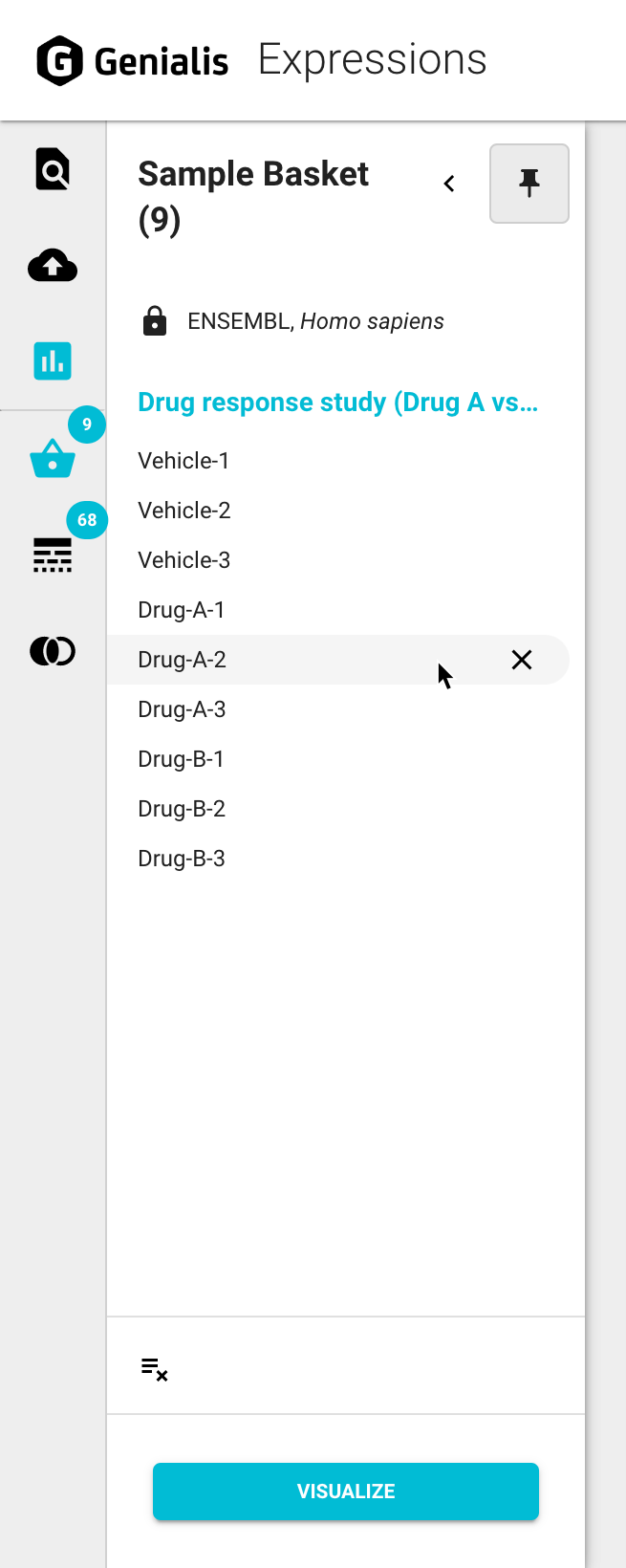
Manage samples in the Sample Basket
You can remove specific samples from the Sample Basket by clicking on the ‘X’ icon button next to the sample name or remove all samples at once by clicking the ‘Clear all’ icon button at the bottom of the Sample basket.
Sample Basket and Visualizations page limitations
Though Genialis Expressions analytical and data management features work with any kind of NGS sequencing data including RNA-seq, Chip-seq, ATAC-seq, bisulfite sequencing, whole genome or exome sequencing, the visualizations modules are focused solely on RNA-seq data. If you put other types of data samples to the Sample Basket, the Visualizations page won’t work properly.
All samples in the Sample Basket must be of the same species. If you try to mix samples from different species an error modal window will appear, prompting you to choose samples of the same species.